New Batch#100 (10th Nov 2021) - Salesforce Admin + Dev Training (WhatsApp: +91 - 8087988044) :https://t.co/p4F3oeQagK

Showing posts with label Force.com GUI. Show all posts

Wednesday, 17 October 2012

Using case in formula fields of sfdc

CASE(MONTH(Mon_Field__c ), 01, 'January/2012', 02, 'February/2012',03, 'March/2012',04,'April/2012',05, 'May/2012',06,'June/2012',07,'July/2012',08,'August/2012',09, 'September/2012',10,'October/2012',11,'November/2012',12,'December/2012','')

* In the above formula, to display year dynameically intead of 'January/2012' use like below:
'January/'+Text( YEAR(Mon_Field__c ))

Tuesday, 25 September 2012

Data Loader CLI

Data Loader CLI (Command Line Interpreter):
* For automating the batches and schedule them using windows "Task Scheduler".
* We can perform import as well as export.
Windows-7 Task Scheduler
* We can do all the same things from the command line - insert data, update data, upsert data, delete data or extract data.
* Instead of "export", we should use "extract".
* We can move data to and from a comma-separated variable file (.csv) or to and from a relational database, such as Oracle or SQL Server, that has a standard JDBC driver.
* With a default installation on a Windows machine, all the Data Loader files will be placed in the Program Files\salesforce.com\Apex Data Loader APIversion directory, where APIversion corresponds to the API version.
* The process command, encrypt command will be in the bin subdirectory, and the configuration files will normally be in the conf subdirectory.
*The main configuration file used by the CLI is the process-conf.xml file.
* The process-conf.xml file contains a description for every potential process that could be called from the command line.
* Each of these processes is referred to as a Process Bean. 
* In this simple example, there is only one Process Bean in the process-conf.xml file.
* In normal practice, though, you would have a number of Process Bean sections in the configuration file, so calling out the specific process would make sense.
* The process-conf.xml file consists of a set of property-value pairs.
* The file used for this sample process is shown below, with an explanation of the key entries following the listing.
<!DOCTYPE beans PUBLIC "-//SPRING//DTD BEAN//EN" "http://www.springframework.org/dtd/spring-beans.dtd">
<beans>
    <bean id="csvInsertArtist"
          class="com.salesforce.dataloader.process.ProcessRunner"
          singleton="false">
        <description>Inserts artist names from CSV file into Artist custom object.</description>
        <property name="name" value="csvInsertArtist"/>
        <property name="configOverrideMap">
            <map>
                <entry key="sfdc.debugMessages" value="false"/>
                <entry key="sfdc.debugMessagesFile" value="c:\dataloader\csvInsertArtist.log"/>
                <entry key="sfdc.endpoint" value="https://www.salesforce.com"/>
                <entry key="sfdc.username" value="<i>Your Salesforce ID</i>"/>
                <entry key="sfdc.password" value="<i>Your encrypted Salesforce password</>"/>
                <entry key="sfdc.timeoutSecs" value="540"/>
                <entry key="sfdc.loadBatchSize" value="200"/>
                <entry key="sfdc.entity" value="Artist__c"/>
                <entry key="process.operation" value="insert"/>
                <entry key="process.mappingFile" value="c:\dataloader\artistmap.sdl"/>
                <entry key="process.outputError" value="c:\dataloader\errorInsertArtist.csv"/>
                <entry key="process.outputSuccess" value="c:\dataloader\successInsertArtist.csv"/>
                <entry key="dataAccess.name" value="c:\dataloader\Artists_1_100.csv" /> 
                <entry key="dataAccess.type" value="csvRead" /> 
                <entry key="process.initialLastRunDate" value="2007-06-06T00:00:00.000-0800"/>
            </map>
        </property>
   </bean>
</beans>
 Configuration properties:
The process-conf.xml file contains properties for one or more Process Beans. Some of the more important properties are
  • name - used to identify the bean in the config.properties file and when you call it from the CLI
  • sfdc.entity - the Salesforce object that is the target of the actions. The value of this property is case sensitive.
  • process.operation - identifies the type of operation
  • process.mappingFile - identifies the mapping between the fields in the source file (dataAccess.name) and the Salesforce object. This mapping file is a .sdl file. The mapping file is the same format as the .sdl file created by the GUI when you save a mapping scheme.
  • dataAccess.type - identifies the operation to perform on the source file
  • sfdc.username - your Salesforce.com user name 
* To schedule the file we should open windows Task Scheduler.
C:\Program Files (x86)
C:\Program Files (x86)\salesforce.com\Data Loader\bin
process ../conf csvInsertArtist

* C:\Program Files (x86)
C:\Program Files (x86)\salesforce.com\Data Loader\bin
process ../conf csvInsertArtist
-- Save it as filename.bat--
Refer:
Data Loader CLI

Report should be available only to CEO, for others it should be hide, how can we do it?

For a specific Report:
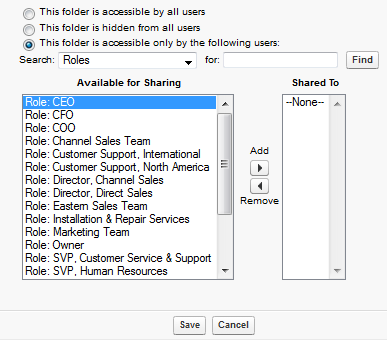
* Specific Report can be controlled by creating a custom report folder and assigning just the CEO as a viewer of this folder. All reports in the folder will be visible to the CEO only in that scenario.
* Observe below screen shots:


 For the Reports Tab:
* Reports Tab can be controlled by the User Profile

Sunday, 23 September 2012

Adding a custom button to page layout

* Go to Object detail page> Go to Custom buttons and links section > create a custom button
* After creating custom button Go to page layout of the object> there you can find buttons and links option> click on that and drag to custom buttons and links area

Friday, 21 September 2012

Is it possible to refer static resources files in formula fields

Unfortunately, it does not. The reason is that static resources cannot be referenced in formula fields.

But no big deal, because each static resource gets its own unique URL. So you could go to your static resource and click ‘Click here to view this file’ 
 
Refer:
http://improveit360.blogspot.in/2010/09/how-to-use-static-resource-images-in.html

Wednesday, 12 September 2012

Latest Versions in SFDC


Name
Latest Version
Apex Data loader
29.0
Force.com API
29.0
Force.com IDE
29.0.0 (compatible with Eclipse 4.2 and 4.3)
Salesforce.com
Winter' 2014


Friday, 24 August 2012

After deleting a record in master object what will happen for the records of junction object

If I delete a record in master object what will happen for the records of junction object?
Solution:
* Suppose A and B are master objects and C is the child object
Few important points :
  1. One Object can have only two Master-Detail relationships.
  2. If we delete record A (First Master detail relationship is always primary) – then child record c will be deleted.
  3. If we delete record B then in this case also child record C will be deleted.
  4. If we delete record c then only C will be deleted , master record will not be deleted.
  5. If child C has two Master record A and B, Where A is primary relation then Child record C will inherit the look and feel of Parent object A.

Moving data from sandbox to production

How can I move Data from SandBox to Production?                                                                  
Solution:                                                                                                                                           
* We can't move your data from sandbox to production.
* We can only move components,applications and profile settings using changesets.
* FYI (For Your Information): We can move data from production to sandbox.
* Use export and import option for moving data into production.

Note: Indirectly, We can use Data Loader to move data from Sandbox to a csv file, and the import the data from csv file into Production.

Difference between Sales Cloud and Service Cloud

Sales Cloud
* "Sales Cloud" refers to the "sales" module in salesforce.com.
* It includes Leads, Accounts, Contacts, Contracts, Opportunities, Products, Pricebooks, Quotes, and Campaigns (limits apply).
* It includes features such as Web-to-lead to support online lead capture, with auto-response rules.
* It is designed to be a start-to-end setup for the entire sales process; you use this to help generate revenue.

Service Cloud
*"Service Cloud" refers to the "service" (as in "customer service") module in salesforce.com.
* It includes Accounts, Contacts, Cases, and Solutions.
* It also encompasses features such as the Public Knowledge Base, Web-to-case, Call Center, and the Self-Service Portal, as well as customer service automation (e.g. escalation rules, assignment rules).
* It is designed to allow you to support past, current, and future clients' requests for assistance with a product, service, billing, etc; you use this to help make people happy.

* The differences between Sales Cloud and Service Cloud are the same across each "edition" ("professional", "enterprise" and "unlimited"), mainly outlined above.
* The differences, as you can gather from the prior paragraphs, is that each cloud is designed to support a specific set of features that you would use to sell services and products, and support those services and products (respectively).

The main differences you will find are the limits between each edition. Professional Edition provides basic functionality; you can create limited customized UI pages (Visualforce), and you can use standard automation (e.g. assignment, escalation, and auto-response rules). Enterprise Edition provides additional features, including custom automation (e.g. workflow rules, Apex Code), improved Visualforce functionality, integration (API) access, generally increased limits, and additional customization features (e.g. more fields per object). Unlimited Edition is an extension of Enterprise Edition, and includes more storage space, premier support, more objects, increased API limits, and so on.

I would look here: http://www.salesforce.com/crm/editions-pricing.jsp, as well as the "Full Comparison Chart" located at the bottom of this page (PDF format), for additional information between each edition. Make sure you check each "tab" on that page for details about features for each cloud/app. You might also be interested in speaking to a sales representative with these types of questions.

Review Points

* We can only use runAs {System.runas()} in a test method. It is not possible to use it in Apex Classes.
* Developer Console by default works in User Mode. 
* For before mode in case of update for an event (if the update is for the same object on which we are writing the trigger) no need to use 'UPDATE' DML Statement.
* Data Loader time zone and sandbox or production time zone should be same while working with date fields. 
 * If we convert the lead record then that lead record won't exists in lead object but when running the reports it will display the converted leads.


Please see the below Comments

Wednesday, 15 August 2012

Validation Rules

Validation Rules:
" To filter the data i.e to avoid the inappropriate data to reflect into the model" we use validation rules

Validation Rules step by step Screen Shots:
* Enter the Rule Name.
* Set the formula for the validation.
* If the formula is True then record won't be saved into the Model.
* If the formula is not True then only record will be saved into the Model.
* For this validation rule formula field, we have options like  VLOOKUP,  ISCHANGED, REGEX(Text, RegEx_Text) will be available which are not available for the formula data type and workflow rule formula fields.
* Formula field works on single record.
* Enter Error Message here which we want to display on page.
* Choose Top of Page to display the error message at top of page.
* Choose Field to display error message below a specific field on the page.


Organization Wide Defaults, Role hierarchy

Organization Wide Defaults, Role hierarchy
* We can specify either private or public for custom objects.
* For Public: public read/write, public read only available for custom objects.
* Standard Objects have many other options
* We can enable or disable role hierarchy for custom objects.

Sharing Rules

Sharing Rules Screenshots (Step by Step)
* Go to 'Sharing Settings', which contain both OWD and Sharing Rules.

* Sharing Rules Screen Page
* If we choose 'Based on the record owner' below options will display.
* If we choose 'Based on criteria' below options will display.

 * From above marked in green specifies that we can provide either Read Only or Read/Write permission to the users.

Record level security

How to provide security for the records?
we actually have four ways of setting record-level access rules:
1. Organization-wide defaults
    * OWD allow us to specify the baseline level of access that a user has in our organization.
    * OWD provides default accessibility for the owners and other users of the organization.
    * Either we can set public or private.
    * For public again we can set like below:
       - public READ/WRITE
       - public READ ONLY
       - public READ/WRITE/TRANSFER (only for standard objects)
       -many more options for the standard objects
2. Role hierarchies
    * It allow us to make sure that a manager will always have access to the same records as his or her subordinates.
3. Sharing rules
     * It allow us to make automatic exceptions to OWD for particular groups of users.
4. Manual sharing
     *IT allows record owners to give read and edit permissions to folks who might not have access to the record any other way.

divisions in sfdc

DIVISION
* A logical segment of your organization's data.
* if your company is organized into different business units, you could create a division for each business unit, such as “North America,” “Healthcare,” or “Consulting.”  

REFER:
login.salesforce.com/help/doc/en/getting_started_with_divisions.htm
http://www.salesforce.com/us/developer/docs/api/Content/sforce_api_objects_division.htm

Permission Sets


Q. There are 8 Fields and I want to assign 4 fields to be visible by one user and another 4 fields to another user, How can we do that?
Q. How can I hide field apart from field level security and page layouts?
(For the above both questions)

A. Using Permission Sets, We can increase the permissions to the user without creating new profile for a single user. Profiles also contain all the options which are in Permission Sets.

Important Points:
* To override the profile permissions, we use permission sets.

Creating Permission Sets - Screen Shots (Step by Step)
* Find Permission Sets option here.

 * Click 'New' here to create new permission set
* Fill these options and select user license type
*Click on the created Permission Set
* Click on 'Assigned Users' to view or assign more users.
* After clicking on the 'Object Settings' below screen will come.

* Click on any object then below screen will display
Assigning Permission Sets - Screen Shots (Step by Step)
* Click on 'Users' at 'Manage Users'.

*Go to 'Permission Set Assignments related list' below user detail
* Click on 'Edit Assignments' and Enable Permission Sets for the user.


Refer:
http://login.salesforce.com/help/doc/en/perm_sets_overview.htm
http://www.salesforce.com/us/developer/docs/api/Content/sforce_api_objects_permissionset.htm

Workflows

Workflow:
"Automating set of manual steps"

* Whenever an event occur based on the criteria an action will takes place.
* Three phases in workflow:
   1. Evaluation Criteria
       In this we have three events
       i.   Create a record or Edit a record but previously did not meet the criteria.      
Rule                     
Create
Edit
met
Yes (Action takes place)
No
met
No
Yes(Action takes place)
met
Yes (Action takes place)
Yes
not met
No Action
No Action
       ii.  Only when a record is created.
Rule                     
Create
Edit
met
Yes (Action takes place)
No
met
No
Yes
met
Yes (Action takes place)
Yes
not met
No Action
No Action
       iii. Every time when a record is created or edited
Rule                     
Create
Edit
met
Yes (Action takes place)
No
met
No
Yes(Action takes place)
met
Yes (Action takes place)
Yes(Action takes place)
not met
No Action
No Action

   2. Rule Criteria
       We have two types of conditions
       i.  Criteria met
       ii. Formula based
   3. Workflow Action
       In this we have two types of workflow actions
       a. Immediate Workflow Action
       b. Time dependent workflow action
       Note: *for Every time when a record is created or edited this is disabled.
                 *Before 999 days only we can schedule
       In this we can perform four actions
       i.   New Email Alert
       ii.  New Task
       iii. New Field Update
       iv. New Outbound Message

Thursday, 9 August 2012

vlookup

Returns a value by looking up a related value on a custom object.

Labels